FAQ:
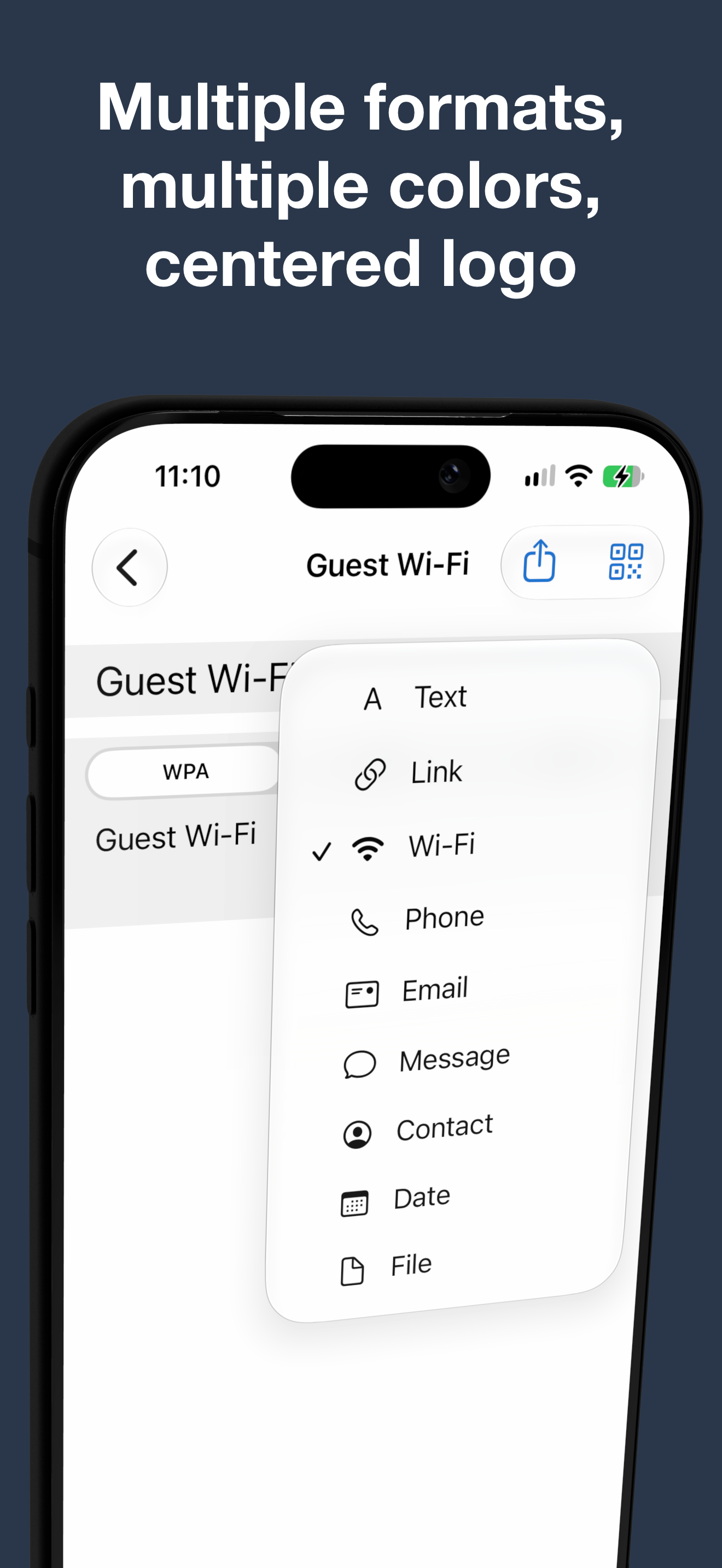
Plain text, website links, Wi-Fi networks, phone numbers, email addresses, SMS messages, contact cards, calendar events, and files. Each kind has its own editor, so you fill in fields instead of writing QR syntax by hand. Anything QRowl does not model stays editable as plain text, so an imported code is never lost — it is just edited as text.
Contact cards and events keep the fields the editor knows about. If you scan a contact card or an event that carries more than that, the extra fields are not preserved when you save it.
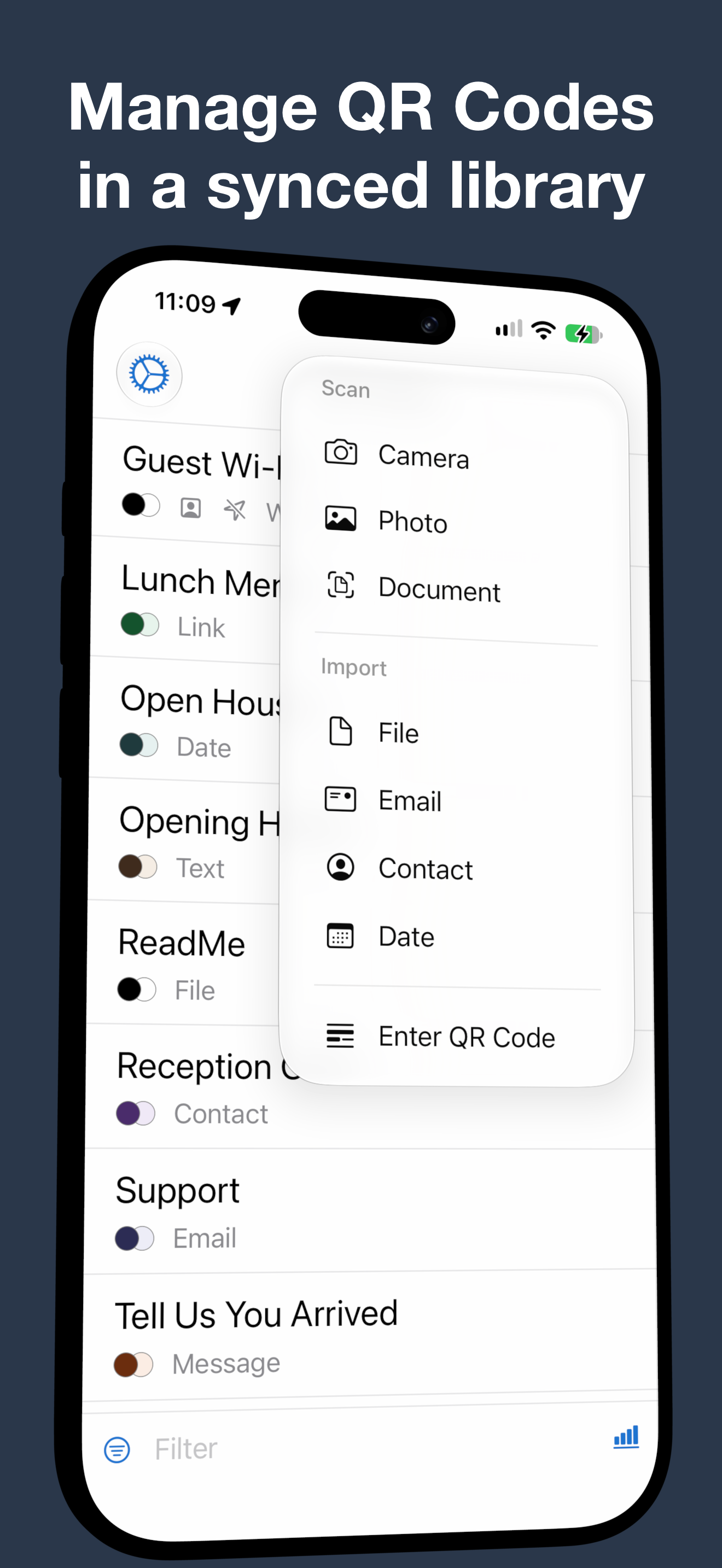
Yes — scan one with the camera, import one from a photo, or pull one out of a file. Scan → Document in the add menu accepts PDFs, images, Apple Wallet passes, and Word, Excel, PowerPoint, Pages, Numbers and Keynote documents. PDFs and images can also be sent to QRowl from other apps through Open in. QRowl recognises the kind of code it found and opens the matching editor.
PDFs and images are read page by page and frame by frame, so a code anywhere in them is found. A Wallet pass is not scanned at all: its QR barcode is read straight from the pass, and a pass whose barcode is another format is reported as having no QR code.
Office and iWork documents are read through the preview iOS makes of them, and that preview shows the first page only, at whatever size the system provides. A code on a later page, slide or sheet is not found, and a small code on a large first page can be missed. Export such a document to PDF and import that instead.
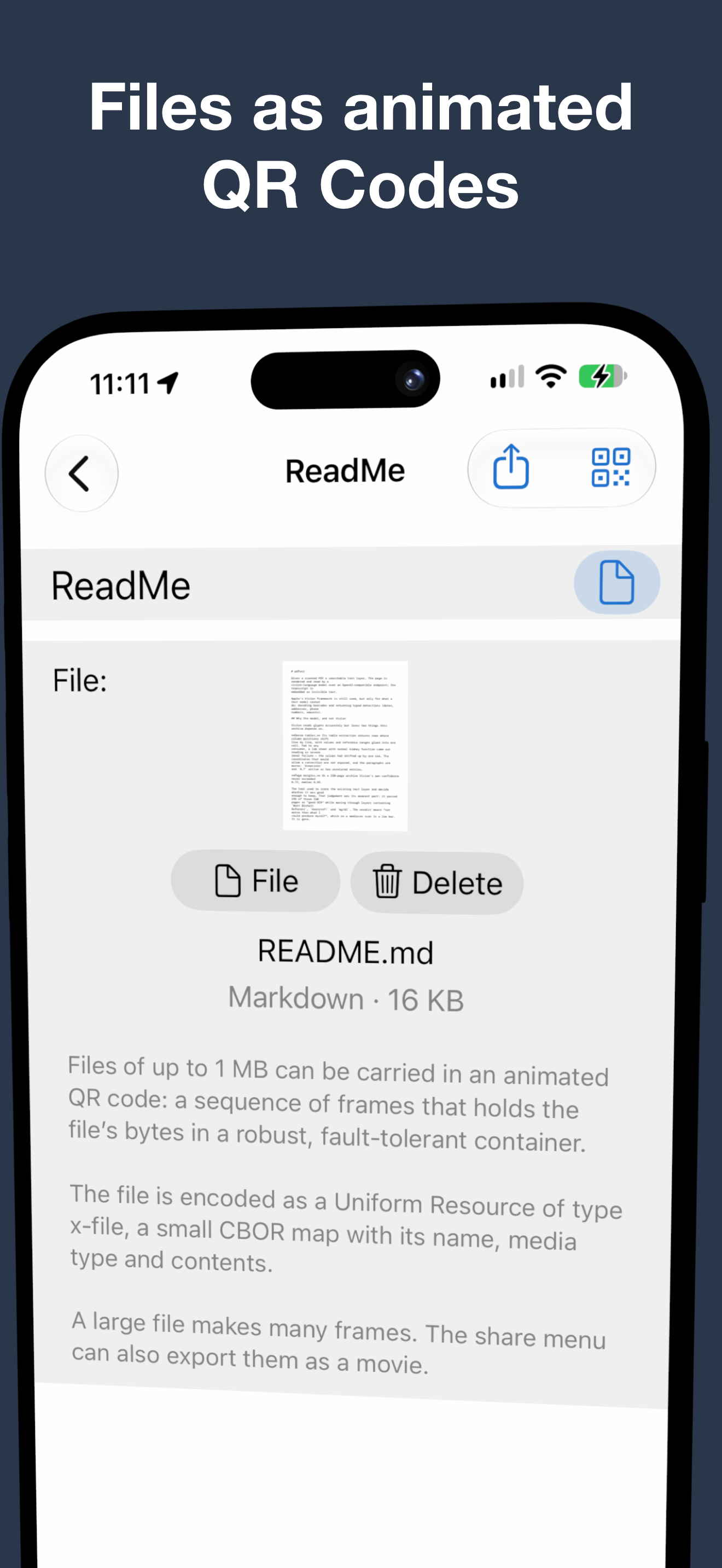
A File code carries a whole file — a PDF, an image, a document, anything up to 1 MB — instead of a line of text. Choose File as the kind and pick a single file from the document picker. The Payload tab shows the file's name, type and size with a thumbnail; tap the thumbnail to open it in Quick Look.
A file is far too much for one QR code, so the preview plays it as an animated sequence of codes, with a stop and play strip underneath. Only QRowl reads that sequence: on another iPhone or iPad, open Scan, point the camera at the playing animation, and QRowl collects the frames until the file is complete, then saves it as a File code in that library. An ordinary camera app sees only a single meaningless frame.
Share sends the file itself. Export as Movie in the same share sheet saves the animation as a video you can play on a screen, a monitor or a tablet for others to scan. A File code takes your colours but no centre logo, it does not appear in widgets, and a location reminder for it carries no picture.
Files sync privately between your own devices with the rest of the library. A code whose file has not arrived from iCloud yet shows a note instead of the animation; a code made by a newer version of QRowl than the one you are running cannot be opened until you update.
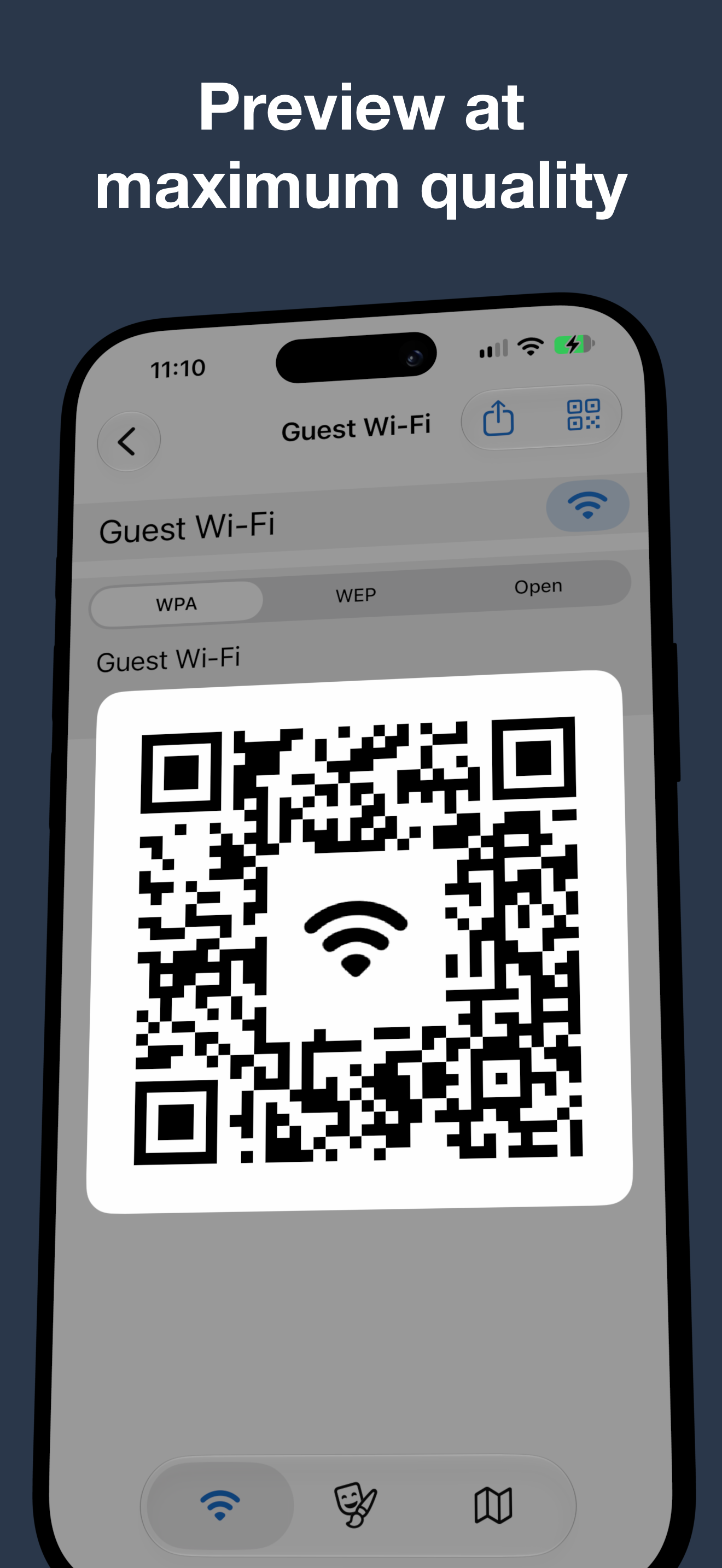
Yes. Pick a square image or an SF Symbol and QRowl places it in the centre of the code. Symbol logos keep their name, so they re-render in the code's foreground colour when you change it. Before accepting a logo, the app scans the finished code back to make sure it still reads as the exact payload you entered, trying smaller logo boxes until one works.
If the editor shows a warning instead, no size worked — a longer payload leaves less room for a logo. Try a shorter payload, a simpler image, or save the code without one.
Yes. Share sends what the code means rather than just a picture of it: a link opens as a link, a contact card lands in Contacts, a calendar event goes to Calendar, and an email or SMS code carries its subject or message. The code image travels along for Messages, Mail, AirDrop and anything else that shows pictures.
Print is in the same share sheet. It puts the code on a single page with its name as the title, as large as the paper allows, and nothing else — made to be taped to a wall or stood on a counter and scanned from a distance.
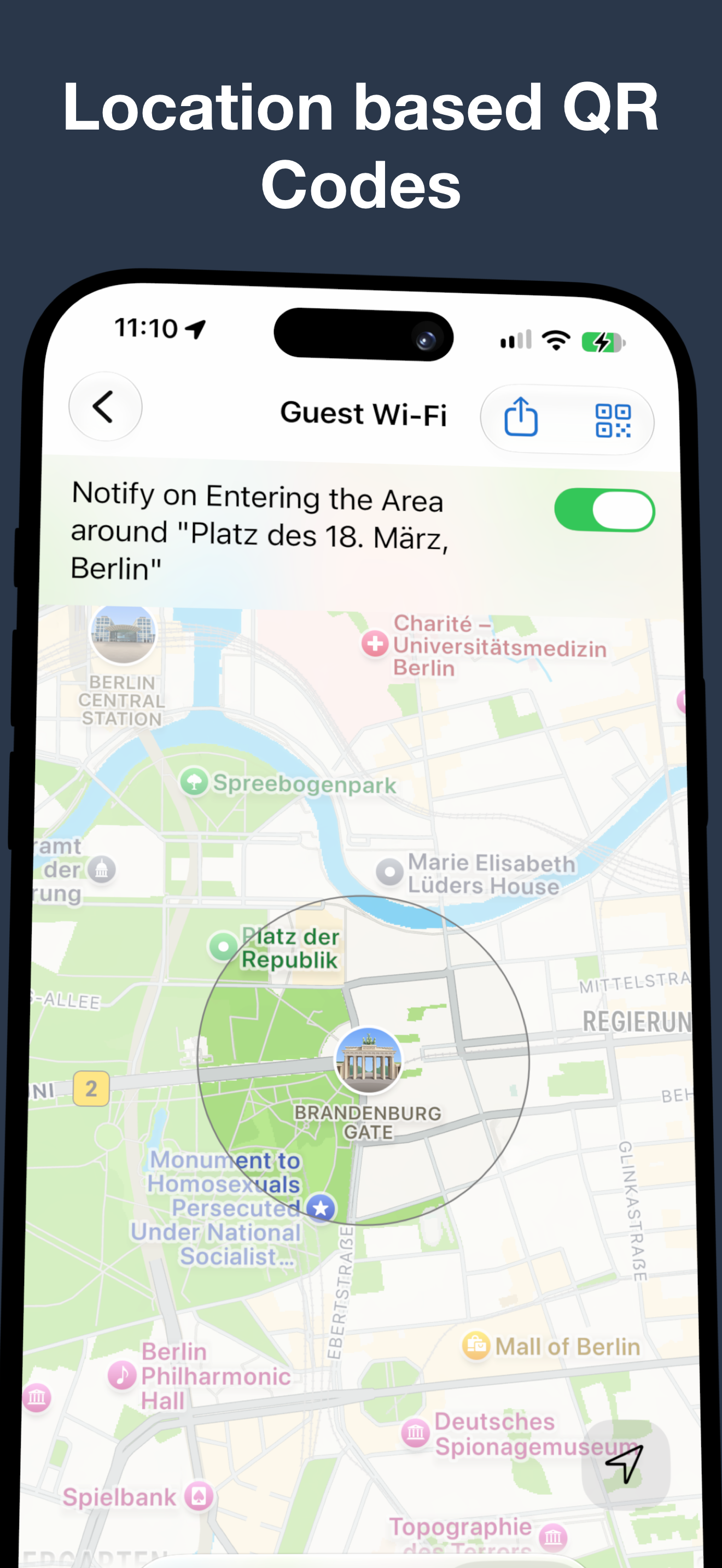
Open a code's Location tab, edit the code, switch the location on, and position the circular area on the map. On the first save, QRowl asks whether this device should notify you. You can change that device-only choice later under Config → Settings → Track location notifications.
With notification and When In Use location permissions granted, entering the area posts QRowl — Show <code name>. Tap it to open the code's preview. Reminders repeat on entry until you remove the location or switch them off on that device. iOS monitors the boundary, so delivery timing is not exact.
The code has a saved location, but this device does not currently have its reminder scheduled. Check Track location notifications and the app's notification and location permissions in Settings. QRowl monitors the ten most recently modified valid locations on each device; older locations remain saved and synced, and become active automatically when room is available.
No. Your codes and optional saved locations are stored on your device. If you are signed in to iCloud they sync privately between your own devices through your personal iCloud account — there is no shared or public database, and nothing is sent to us or to anyone else. Whether a device sends location reminders stays on that device. The widget draws a preview image that your device generated locally; it never talks to iCloud itself. QRowl contains no analytics, no tracking and no advertising.
Details are in the Privacy Policy.
No. QRowl creates no account and asks for no email address or password. There is no subscription. QRowl Pro is a one-time purchase, not a recurring one.
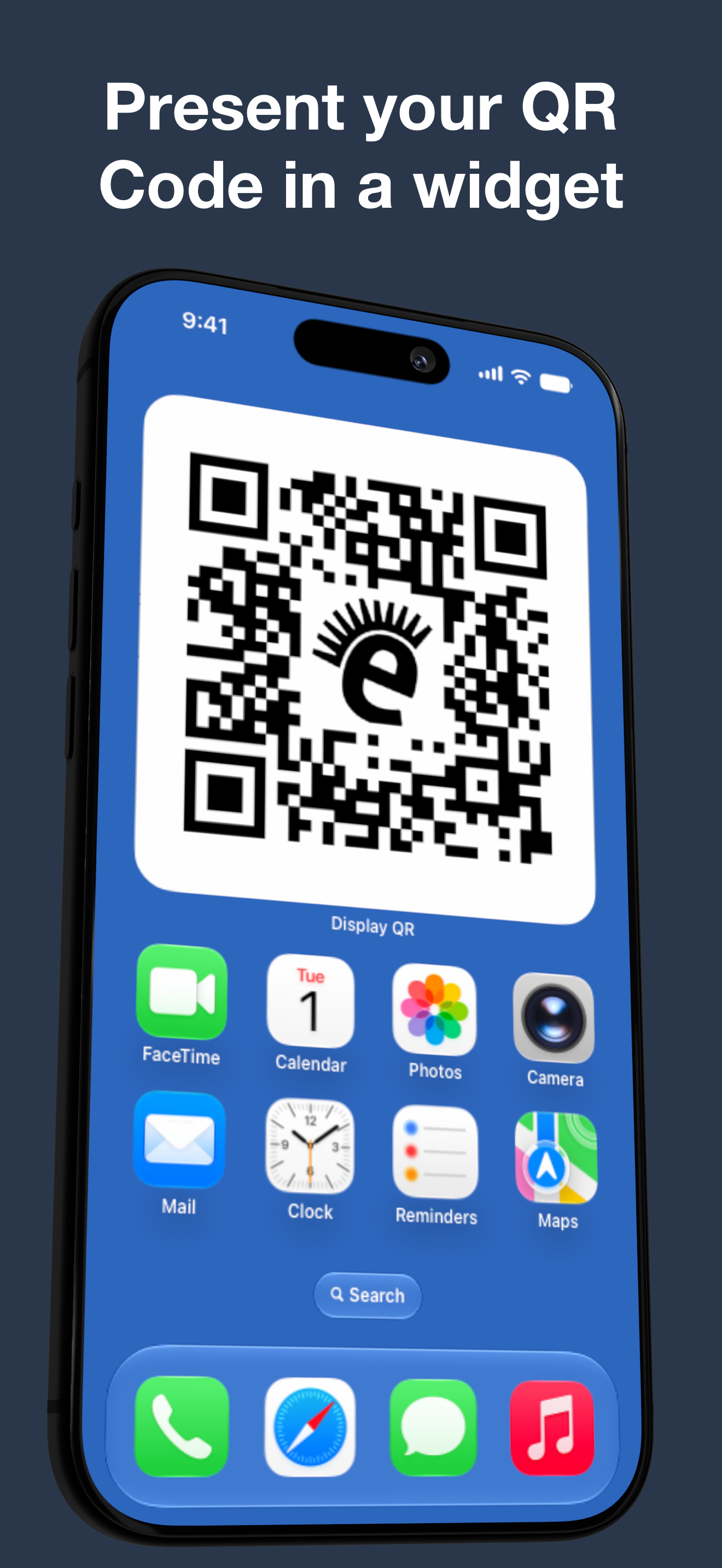
Widgets are free and unlimited: every code in your library stays visible, previewable, shareable, and available to as many widgets as you like, whether or not you buy Pro. Nothing is ever hidden or deleted because of the limit.
For free you can build a library of up to five codes, and edit or delete the five newest ones. Once your library holds five codes, every create or import route presents the QRowl Pro offer.
QRowl Pro is a one-time purchase that removes the limits on creating, editing and deleting codes. It supports Family Sharing, and Restore Purchases brings it back on your other devices.
On the Home Screen or in Today View:
- Long-press an empty area of your Home Screen until the icons jiggle.
- Tap the + button in the top corner.
- Search for QRowl and choose a widget size.
- Tap Add Widget.
- While editing, tap the widget you just placed. Choose Kind first, then QR Code, and tap Done.
In StandBy, long-press either widget, unlock the iPhone, and add QRowl with the + button. Close the gallery but stay in editing mode, then tap the QRowl widget you placed — a second tap may be needed. Choose Kind first and then QR Code.
Tapping a widget opens that code's detail screen in the app.
That placeholder means the widget has not been configured yet, or its selected code is no longer in your library — usually because it was deleted on this device or another one. QRowl never quietly substitutes a different code. Enter widget editing mode, tap the placed widget, choose Kind first, and then pick an existing QR Code.
Widgets are refreshed by iOS, which decides when a widget redraws. QRowl asks for a refresh after you save a change, but the system may take a little while to run it. Opening the app and returning to the Home Screen, Today View, or StandBy usually speeds this up.
Sync is private and same-person only. Check that both devices are signed in to the same Apple Account, that iCloud Drive is on, and that the devices have a network connection. Sync is not instant; give it a moment after a change. If you sign in with a different Apple Account, the local library is reset before the new account's codes are downloaded.
Open the app's configuration screen and use Restore Purchases. Make sure the device is signed in to the Apple Account that made the purchase. QRowl Pro is a one-time purchase and supports Family Sharing.
For questions, feedback or bugs, email [email protected]. Please include your device model and iOS version if you are reporting a problem. We aim to respond within 5 business days.
Press enquiries are welcome at the same address.